a calm morning assistant for any business
On Top of It.
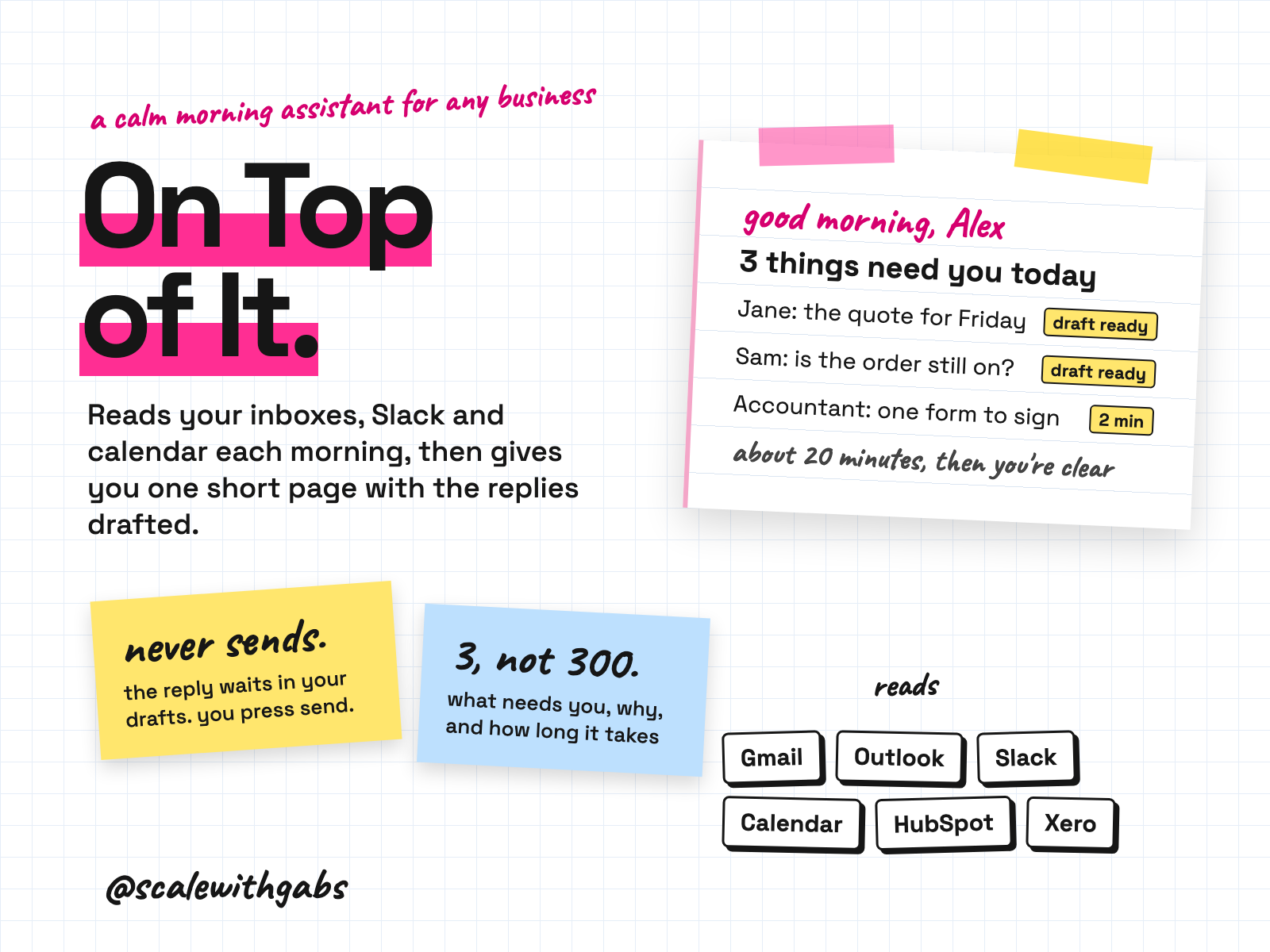
Open one page each morning and see what needs you today. Every item says why it is there and about how long it takes, and the reply is already written, waiting in your Gmail or Outlook drafts. It also lays out your meetings in order, what you have promised and who owes you an answer. Built for busy brains, including ADHD.
Never used AI before? Good, this was made for you. If you can copy and paste, you can do this. here's how
works in
- Claude
- Codex
- Cursor
- Gemini
Why I built it.
a forgotten reply is not a character flaw
Running a business means a lot of people can ask you for things. Email, Slack, the CRM, an invoice to chase, a form from school. It all lands in different places, and none of it says which one matters first.
The hard part is rarely the reply. It is picking which one to start with, and the guilt that piles onto every message you have not answered yet. I wanted one page that picks, says why, and has the first draft ready, so starting is the easy bit.
I also wanted it safe to leave alone. It cannot send, delete, move or pay anything. It drafts and you decide. And it runs on your own accounts, so your inbox stays yours.
What it does.
- Ranks what needs you. Up to five things each morning, each with the reason it is there and about how long it takes. Whatever it sets aside is one tap away.
- Drafts the reply. A Help me reply button on every message that needs an answer. The draft is written in your voice and waits in your Gmail or Outlook drafts for you to read and send.
- Shows your day. Your meetings in order, how much free time you have, and a short prep note for each one.
- Tracks what you promised. What you said you would do, who you are waiting on, and a polite nudge ready to go.
- Chases the quiet stuff. Deals in HubSpot or Pipedrive that have gone quiet, and overdue invoices in Xero, with the follow-up drafted.
- Keeps life admin separate. Bills, renewals and school forms get their own small section. It stays off until you switch it on.
- Never sends, deletes, moves, pays or cancels anything. It reads, it ranks and it drafts, and that is where it stops.
Who it's for.
and who it is not for
- Business owners and founders, solo or with a small team, selling products or services.
- Anyone running more than one inbox, such as their own and a support address.
- People who read an email, mean to reply, and find it again nine days later.
- Busy brains, ADHD included. It gives you the answer first, not a menu.
- Anyone who wants the help without handing over the controls.
Not for: anyone who wants an assistant that sends, books or pays for them (it never does), anyone who only uses chat apps like claude.ai or ChatGPT, or anyone who needs WhatsApp, texts or Microsoft Teams read. It needs an AI assistant that can work in a folder, and a willingness to make a few accounts.
How it works.
- 1You open the folder in your AI assistant. And paste one message. That is the only thing you type that is not a normal sentence.
- 2It asks, one thing at a time. Which inbox, which calendar, when you want your page. It tells you where to click.
- 3It goes live on your own Render account. Your assistant sets it up with you, step by step.
- 4You connect what you want. Gmail or Outlook first. Slack, HubSpot, Pipedrive, Xero and life admin are each optional, and you can add them later.
- 5Your first page arrives. At the time you chose, and every morning after.
- 6Then it is a habit. Open the page, work through the cards, press send on the drafts you like.
See it in action.
tap one to see it full size
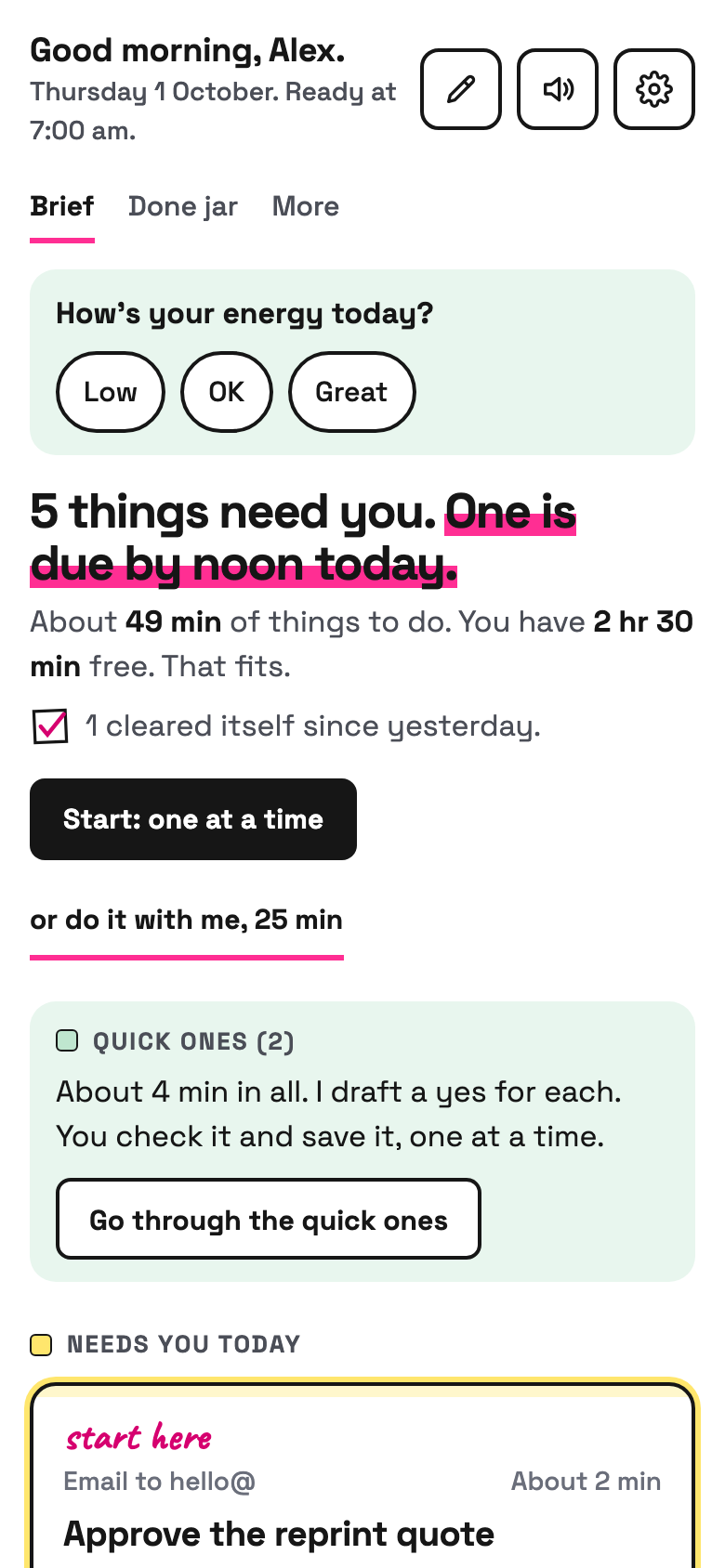
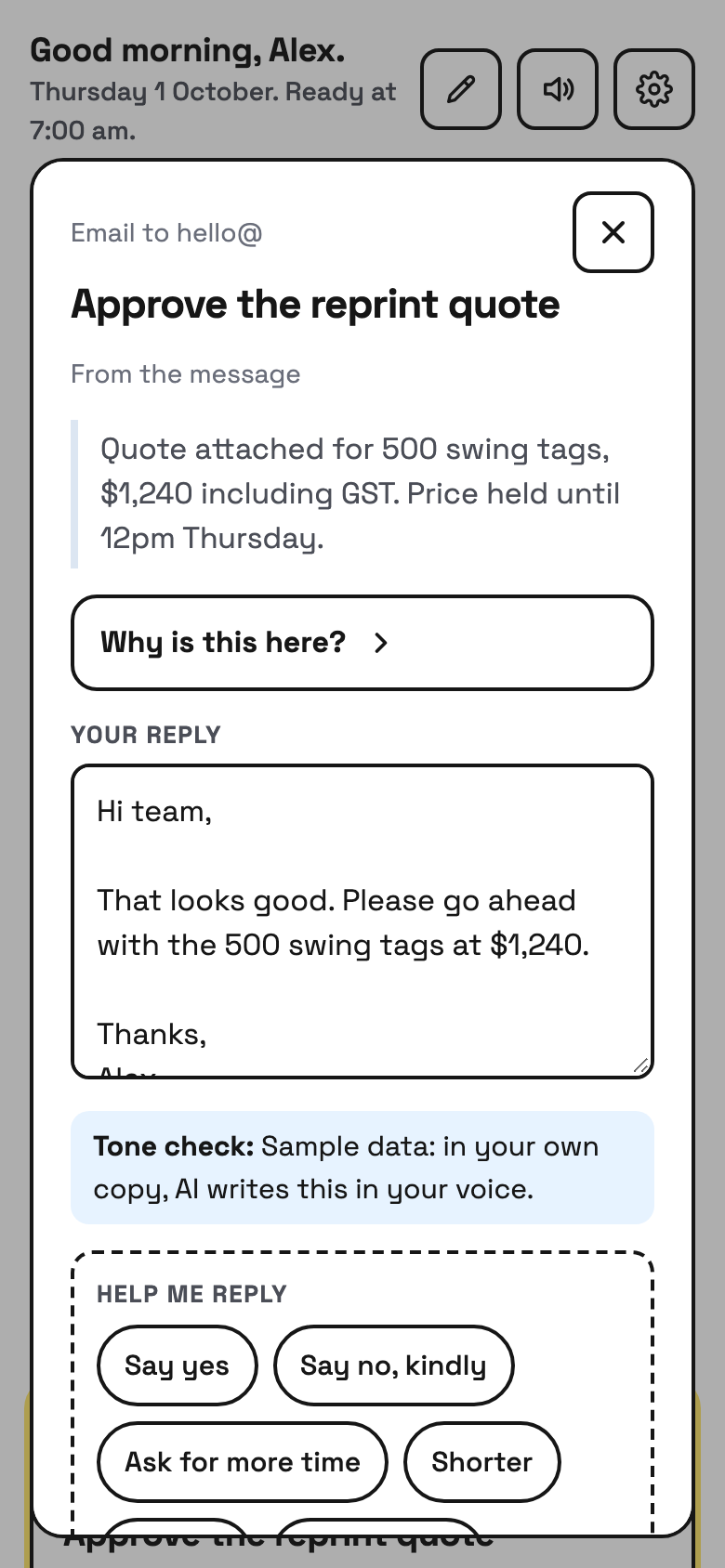
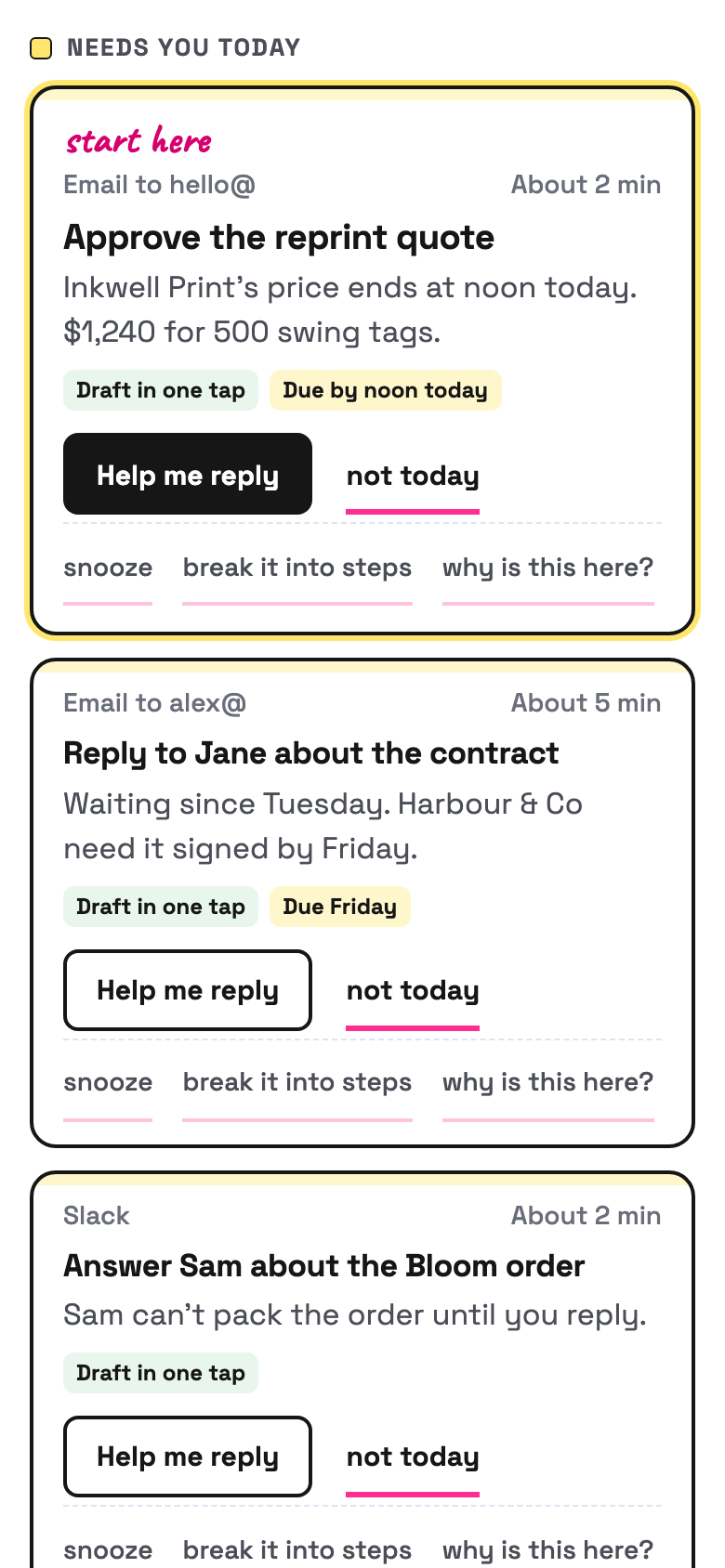
Sample data. These screenshots are from the real app running on a made-up business, so every name and message is invented. Yours shows your own inbox and your own day.
How to use it.
copy, paste, done
- 1Unzip it and open the folder in your AI assistant. Claude Code, Codex, Cursor or Gemini CLI. The How to use page shows you where Open folder is.
- 2Paste the first message. It is on the How to use page with a copy button.
- 3Answer its questions and click where it says. Mostly your assistant working and you clicking in your own accounts. You can stop whenever you like and it picks up where you left off.
the first message
Read AGENTS.md in this folder, then BUILD_BRIEF.md, and set up On Top of It for me. I am not technical and I have never used AI like this before. Ask me one question at a time, in plain English, and tell me exactly where to click whenever you need me to do something. Do not give me commands to type. When it is working, show me what my first morning page looks like.
Then just say things like
Check my brief.a plain English health checkSomething looks wrong with my brief.paste what you see and it finds out whyAdd Slack to my brief.any connection, any timeAdd my support inbox.more than one inbox in the same listMore help. Or: Less help.turn the level up or downI need to stop for now. Save where we are.pick up later, in any session
Works in your AI tool.
needs an assistant that can work in a folder
Where I have run it: Built and tested end to end on a made-up business with sample inboxes. Next I run it on my own business's inboxes, and this line changes when that is done.
Never used AI?
good. start here.
Good. You're exactly who I wrote the lessons for.
Every download comes with a How to use page you can open before you even unzip anything. Pick your AI tool and it shows you where to click and what to paste, one step at a time. If you can copy and paste, you're qualified.
Then there's a short lesson that walks you through your first real session: what to say, what a good answer looks like, and what to do when it isn't. You never have to type a command.
Still stuck? Every download has an it didn't work section for each tool, and my email. Or grab an hour with me and we'll set it up together.
What you get.
- The On Top of It app, ready for your AI assistant to set up on your own Render account.
- Connector guides for Gmail, Outlook, Slack, HubSpot, Pipedrive and Xero, click by click.
- The How to use page and a lesson on getting the most from your morning page.
- Setup files for Claude Code, Codex, Cursor and Gemini CLI.
- Want me beside you while you set it up? There is an option with a setup call with me, at A$799.
Good questions.
tap a question to open it
Will it send emails for me?
No. Never. It writes drafts and leaves them in your Gmail or Outlook drafts. You read them, change them and press send yourself. It cannot delete, move, pay, book or cancel anything either.
Where does my email go?
To your own server on Render, and to the AI company you choose, which reads it to rank and draft.
Do I need to be technical?
No. Your AI assistant does the technical parts and tells you where to click. You will make a few accounts along the way, and it walks you through each one. If you would rather have me beside you, there is a setup call option.
What does it cost to run?
Render bills you monthly for the small server it runs on, and your AI provider bills you as you go for the reading and drafting. You also need a paid plan on the AI assistant that sets it up. Those prices belong to those companies and they change, so check each one's current pricing before you buy.
Can I use Outlook?
Yes. It works with Gmail and Google Calendar, or with Outlook and Microsoft 365, and you can connect both. A work account may need your administrator to allow it. Slack, HubSpot, Pipedrive and Xero are optional extras, read only.
Does it work for my personal life too?
Yes, if you switch it on. Life admin is its own small section for bills, renewals, appointments and school forms. It sits apart from your work items and stays off until you ask for it.
What if I have ADHD?
I built it for busy brains, ADHD included. It gives you the answer first, a few things at a time, says why each one is there, and never uses red or shame words like overdue. It is a tool for your inbox, not a treatment, and I cannot promise how it will feel for you.
What if it gets something wrong?
It can. It might rank something too low or miss a message, so read each draft before you send it, and keep your own check on anything urgent, legal or medical. When it is unsure, it shows the item with a note instead of hiding it.
Can it read my team's inboxes?
No. It reads the inboxes you connect, and nobody else's. If you want to pass something to a team member, it drafts the note for you to send.
Do I need a paid AI plan?
I recommend running these on a paid plan for your AI tool, like Claude Pro, ChatGPT Plus or Google AI Pro. Free plans cap how much you can send, how many files a project can hold and which model you get, and these skills do their best work on the strongest model your tool offers.
Can anyone see my data?
No. The skill runs inside your own AI account. Nothing comes to me, and there's no server in between.
What will the AI do with my info?
The same as with anything else you type into it: it follows your AI tool's privacy settings. Most let you switch off using your chats for training: in Claude it's under Privacy, in ChatGPT it's Data controls, and in Gemini it's your Activity settings.
Claude Cowork or Claude Code? Which one?
Claude Code. I know, the name sounds scary, but you never write code. You open the Code tab in the Claude desktop app and chat like normal. The difference is what it can do: it works right inside your own files and folders, runs the little tools my skills use, and can build real things like a dashboard. That's why it's the one I use every day. It asks before it changes or runs anything, so nothing happens without your click. And if anything confuses you, tell it to explain it like you're 5.
Should I be worried about giving AI my business info?
Honestly? If you've ever logged into public Wi-Fi at a cafe, you've already taken a bigger risk than this. If you want to grow, you need to move fast and get ahead, and worrying about AI will hold you back. Just be smart about it: never give AI your passwords, API secret keys or card details, use a paid plan and switch off training in your settings, and only connect the apps you actually need.
What if it's not for me?
Because you get the whole skill the moment you buy, I don't offer refunds for change of mind. Not sure it suits your business? Message me before you buy and I'll tell you honestly. If something's actually broken, reply to your receipt and I'll fix it.
How do I get it?
Pay once. Your receipt email has your licence key and a How to use page. Go to gabisaper.com/download, paste the key, pick the AI tool you use, and your copy downloads, made out to you. One licence is for one business and one AI tool. Know Your Numbers downloads straight from the receipt.
Do I get updates?
Yes. When a new version is out you get an email with the new download and a message to paste that updates it without losing your settings.